
How it works · voice to text in any app

Speak. It types. On your phone.

No cloud round-trip, no waiting on a server. From the moment you tap the floating mic, everything happens on the device in your hand — across eleven Indian languages.

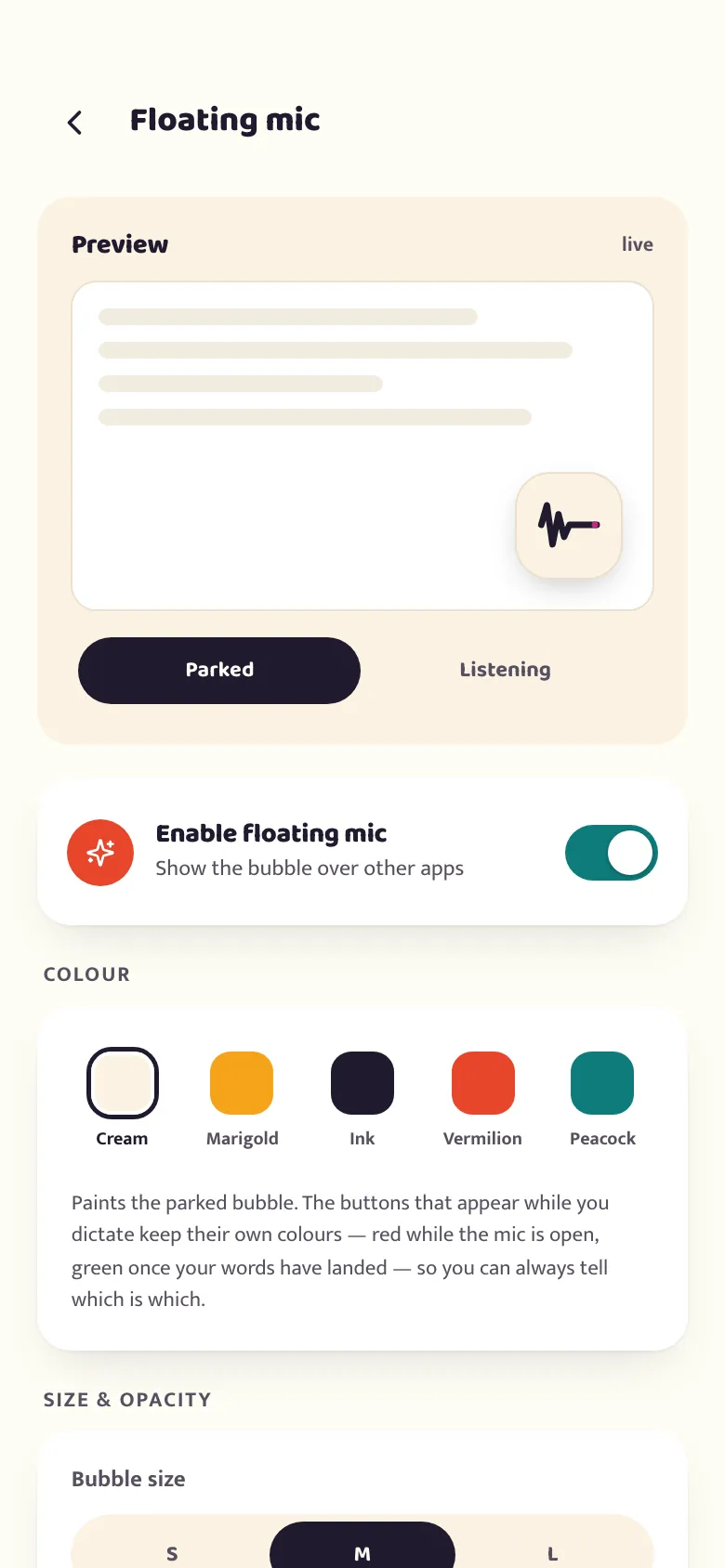
The betterflo floating-mic settings screen, with controls for bubble size, position and auto-hide
The pipeline

Three beats, start to finish.

Tap the floating mic, and betterflo captures your voice. It turns speech into text on the device. Then a light pass tidies it up and inserts it where you were typing. That’s the whole loop — and none of it needs the internet.

1

Tap the floating mic

A small mic bubble sits on top of whatever app you're in — a chat, an email, a search box. Tap it and just say what you mean. Mix languages mid-sentence freely; you don’t switch modes or pick a language first. Prefer a keyboard? betterflo’s has a mic key beside the space bar that starts the same dictation.

On phones that can run it, words land as you talk — see what your phone gets.

Any appHold or tap
2

Transcribed on-device

An on-device speech model turns what you said into text — right there on the phone. No internet, no server, nothing uploaded. It's built for budget hardware, not just flagships, and it keeps working on the metro with no signal. See exactly what your phone gets.

Offline isn’t a fallback — it’s the default path.

No network0 bytes sent
3

Cleaned up and inserted

A quick pass adds punctuation and fixes casing, so “kal meeting hai at 5 please confirm karna” comes out as a clean sentence — then it's placed straight into the field you were dictating into. It tidies what you said — it doesn’t reword it or invent things you didn’t.

Want more polish? There’s a dial for that.

Light by defaultYour words
Two ways in

Floating mic, or the keyboard — your call.

The floating mic is the default: a bubble over whatever app you’re in, no keyboard switch. It needs two Android permissions, each explained before it’s requested. Would rather skip that? The betterflo keyboard is a keyboard you type on, dictate from and edit in — with no accessibility service at all.

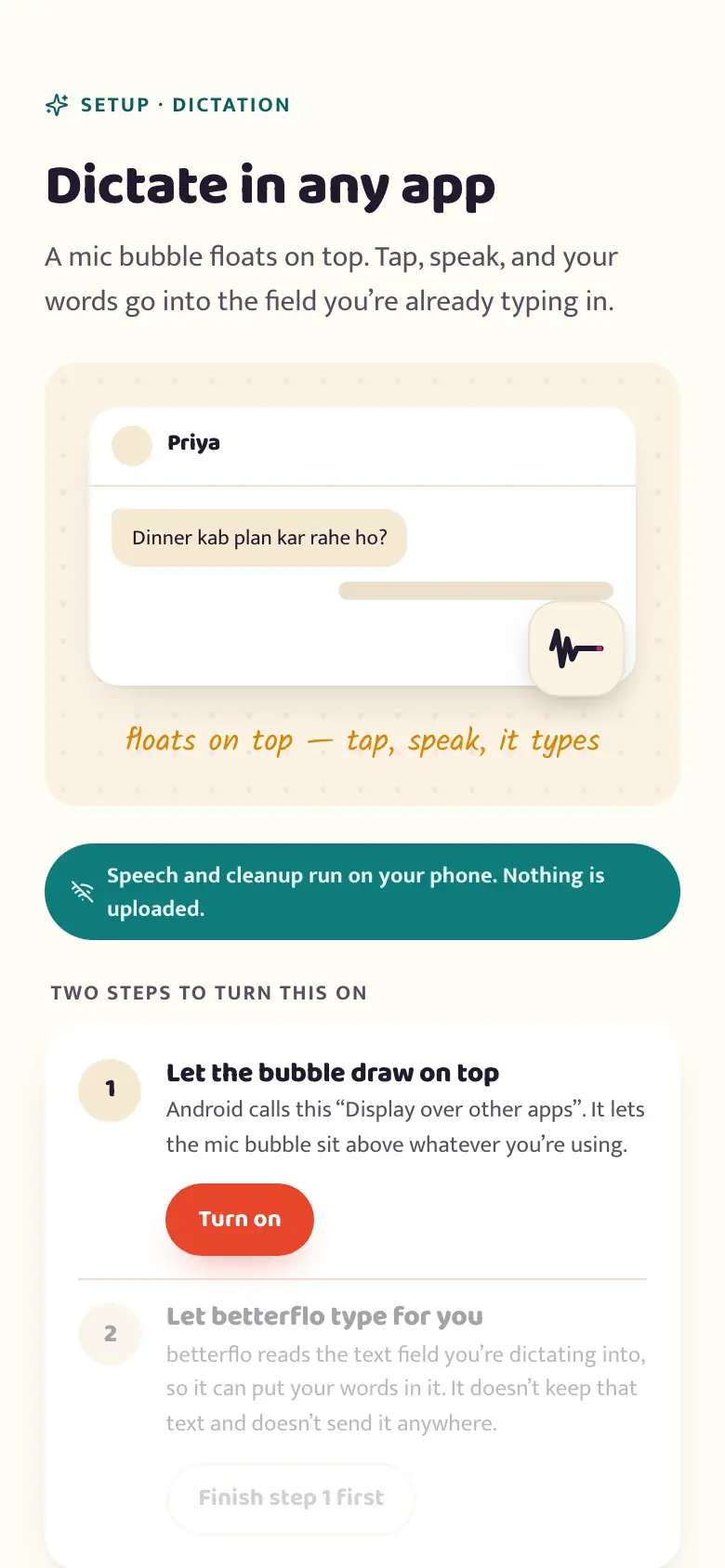
The betterflo setup screen for the floating mic: a mock chat showing the bubble in place, and two steps to turn it on — display over other apps, then the accessibility service
Default

The floating mic

A bubble that sits over whatever app you’re in. Needs “display over other apps” and an accessibility service to insert text into the field you’re dictating into — both explained plainly before Android ever asks.

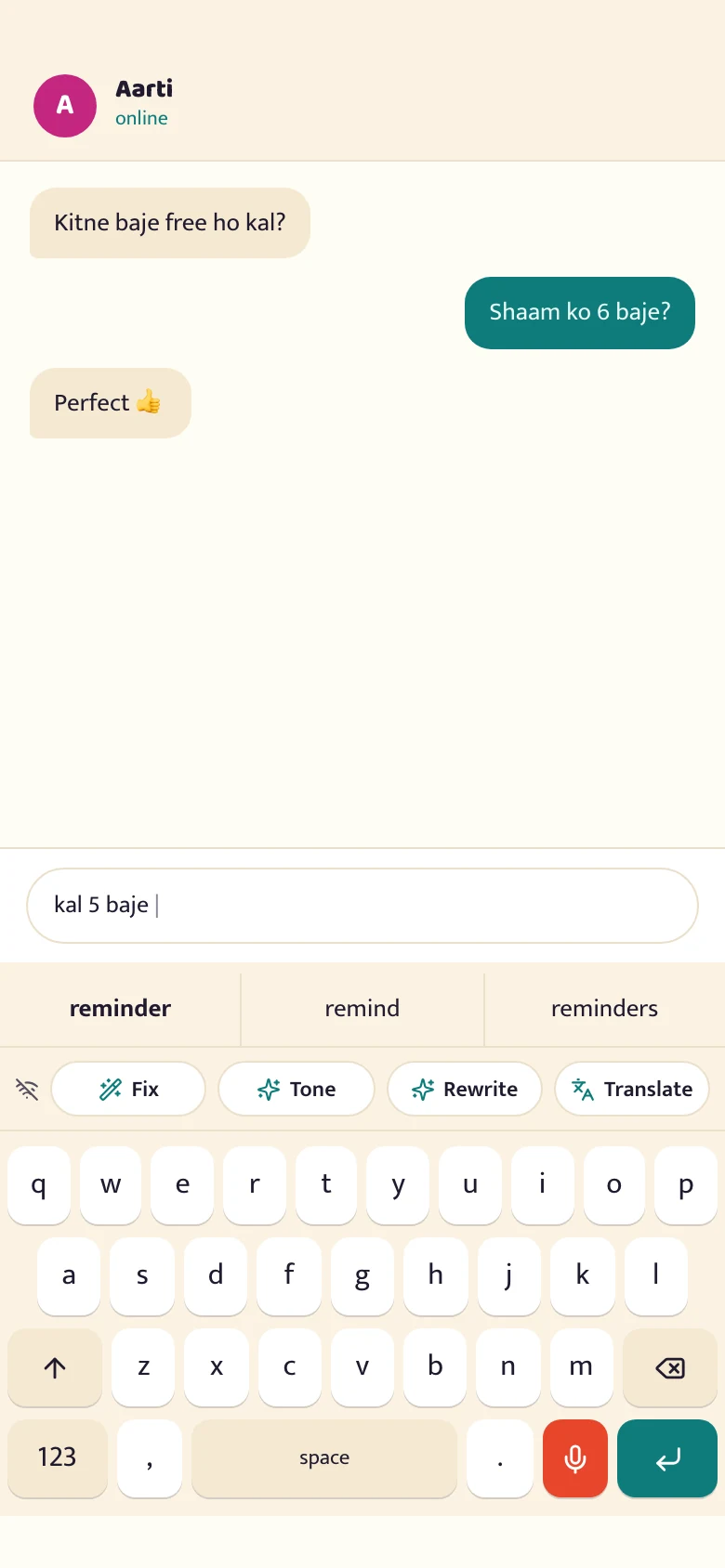
The betterflo keyboard typing under a chat: a QWERTY grid with a word-suggestion strip above it, an action bar offering Fix, Tone, Rewrite and Translate, and the mic key beside the space bar
Alternative

The keyboard

A full typing keyboard — QWERTY, a suggestion strip, the mic key beside the space bar — with an action bar above the keys: Fix, Tone, Rewrite and Translate, each running on the phone. No accessibility permission at all. Translate reaches every phone; Fix, Tone and Rewrite need a model you download, and the lowest device tier can’t run them — so there, those buttons aren’t drawn at all.

Under the hood

Two swappable parts. Both run on your phone.

Behind the three taps is a simple pipeline: an on-device speech model hands off to a light cleanup step. Each part can be upgraded on its own — and the honest bit is what the pipeline can’t do.

Every step here runs on your device. Nothing is sent by default.

01

The speech model is swappable

ASR is one module, not the whole app. When a stronger on-device model is ready, it slots in — you keep the same keyboard, and get better recognition without relearning anything.

02

Audio stays on-device by default

By default the pipeline has nowhere to send your voice — it’s processed on-device, then released. If we add an optional cloud-quality tier later, it’s strictly opt-in, and you’ll know before anything goes anywhere.

03

Cleanup is light-touch — you hold the dial

It fixes punctuation and casing and leaves your wording alone. If you ever want more, turn the polish up. Even then, it edits what you said — it doesn’t write something new in your place.

04

How the text actually gets inserted

By default the floating mic inserts your text using an Android accessibility service — which reads the field you're dictating into, locally, to place your words there, and nothing more. You'll see a plain-language disclosure before that permission is ever requested. Prefer not to grant it? The keyboard inserts text the ordinary way, with no accessibility service involved.

05

Long recordings are split by ear, not by guess

An optional on-device step — voice activity detection — marks where you actually paused, so a long dictation is transcribed phrase by phrase instead of as one long guess. It's opt-in and works the same regardless of phone tier; it doesn't make dictation faster, but it does make longer speech more accurate.

06

Words landing as you talk is a phone thing, not a promise

On the two higher device tiers, text can stream in as you speak. On the two lower tiers the pipeline keeps one model in memory at a time, so text lands the moment you stop instead — permanently, not as a "coming soon". See which your phone gets.

Setup screens being filled in: a form with completed fields, a toggle panel and a large green checkmark
Get betterflo

See it work in about 20 seconds.

Free to start, no account, offline from the very first tap. After you install, you’ll turn on the floating mic — it’s quick, and we walk you through what each step needs and why.

Get it on Google Play
After install, turn on the floating mic — about 20 seconds. (Or use the keyboard instead.)
After install
  1. 1 Open betterflo
  2. 2 Turn on the floating mic
  3. 3 Tap it and talk